
AI Email Triage Workflow in n8n to Categorize Prioritize and Route Emails Automatically
Build a powerful AI email triage workflow in n8n to automatically categorize prioritize and route incoming emails. Learn how to reduce manual workload improve response time and streamline operations using n8n workflow automation.
 Amplivus·April 1, 2026·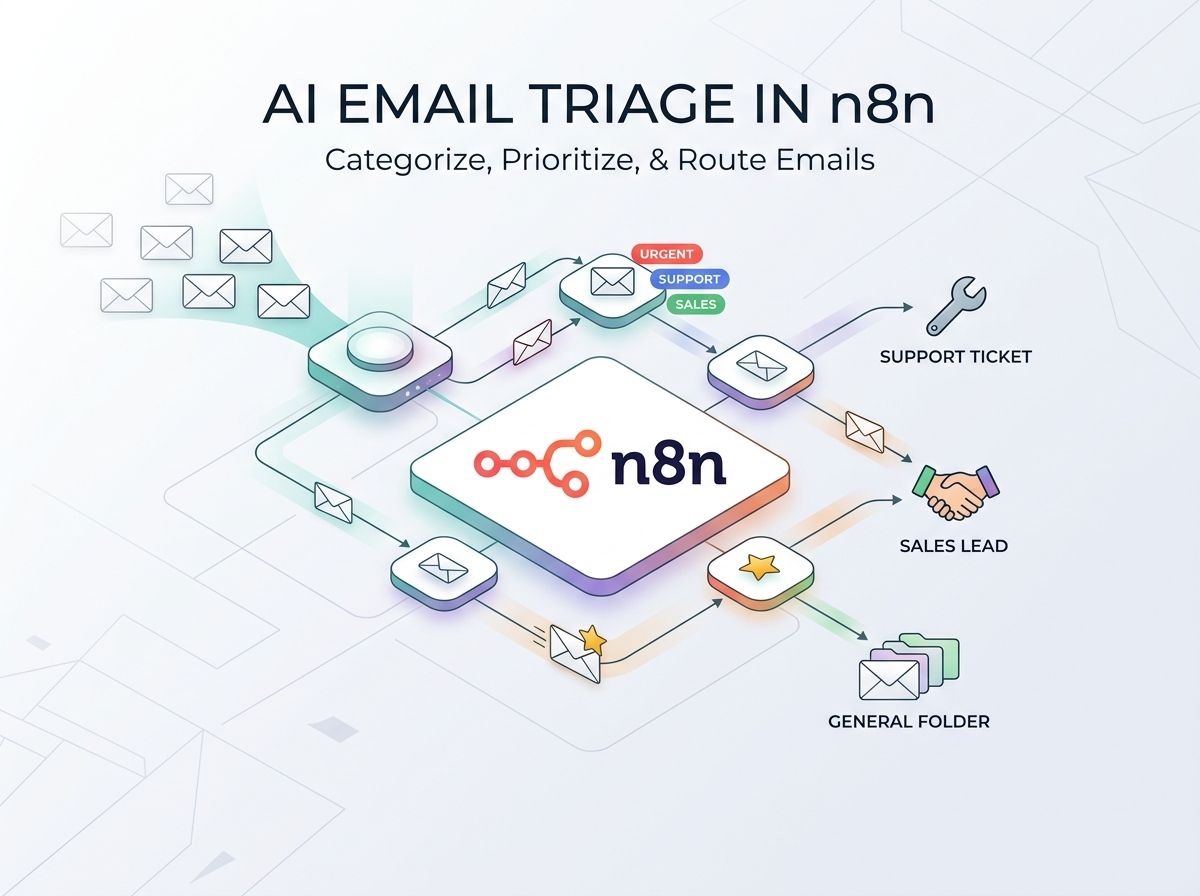
Introduction
Managing a high-volume shared inbox can quickly become overwhelming for any team. When emails are manually reviewed, categorized, and assigned, it leads to delays, missed priorities, and broken service commitments.
This is where an AI email triage workflow in n8n changes everything.
In this guide, you will learn how to build an advanced n8n workflow automation system that automatically processes incoming emails. The system reads each message, extracts useful information, assigns urgency, identifies intent, and routes it to the correct platform such as Zendesk, Salesforce, or Slack.
By implementing this automation, businesses can significantly improve efficiency and ensure no important message gets overlooked.
What You Will Build
This AI email triage system in n8n performs the following actions:
- Captures incoming emails from Gmail or IMAP
- Extracts and cleans the email content
- Uses AI to classify category urgency and intent
- Routes emails to the correct system automatically
- Creates tickets and sends alerts where needed
Business Impact:
- Reduce manual email sorting by up to 80 percent
- Route urgent emails in under one minute
- Avoid missed SLAs and delays
- Maintain consistent data across systems
Technical Overview
| Difficulty | Advanced |
| Build Time | 3 to 4 hours |
| Required Tier | n8n Pro or Enterprise |
| Integrations | Gmail IMAP OpenAI Zendesk Slack |
Prerequisites
Required Tools:
- n8n instance cloud or self hosted
- Gmail or IMAP email account
- OpenAI account with GPT models access
- Zendesk or Jira for ticket management
- Slack workspace for alerts
Skills Needed:
- Basic understanding of n8n workflows
- Knowledge of JSON data structure
- Familiarity with prompt engineering
Workflow Architecture
The automation follows a structured pipeline that converts unstructured email data into actionable outputs.
- Ingestion: Monitor inbox and fetch unread emails
- Sanitization: Clean and extract readable text
- AI Processing: Analyze and return structured JSON
- Routing: Direct emails based on category and urgency
- Execution: Create tickets and send alerts
- Logging: Mark emails as processed
Step 1 Email Ingestion
Start by adding a Gmail Trigger node in n8n.
Configuration:
- Event set to message received
- Filter unread emails only
- Use resolved format for structured parsing
This ensures only new emails are processed and avoids duplication.
Step 2 Content Cleaning
Emails often contain unnecessary HTML and formatting. Use an HTML node followed by a Code node to clean the content.
Key actions:
- Remove HTML tags and extra spacing
- Limit content length to avoid AI overload
- Preserve subject and sender information
Step 3 AI Classification
Use the OpenAI node to analyze the email.
The AI should return structured JSON with:
- Category such as Sales Support Billing
- Urgency score from 1 to 10
- Short summary of the message
- VIP flag
- Sentiment
Using structured outputs ensures consistent and reliable automation.
Step 4 Routing Logic
Add a Switch node to route emails based on AI output.
Example routing:
- High urgency or VIP goes to escalation path
- Sales inquiries go to sales team
- Support requests go to helpdesk
- Other messages go to review queue
Step 5 Actions and Notifications
Once routed, perform actions such as:
- Create Zendesk tickets with priority levels
- Send Slack alerts for urgent cases
- Assign tickets to appropriate teams
This ensures immediate action without manual involvement.
Step 6 Mark Emails as Processed
Update the email status to prevent reprocessing.
- Remove unread label
- Add processed label
Testing the Workflow
Scenario 1 Support Request
- Expected category Support
- Moderate urgency score
- Ticket created in helpdesk
Scenario 2 Urgent Issue
- High urgency detected
- Slack alert triggered instantly
- Ticket marked urgent
Scenario 3 Empty or Spam Email
- Classified as Spam or Other
- Sent to fallback queue
Deployment Checklist
- Secure all API credentials
- Set up error handling workflow
- Monitor rate limits for APIs
- Ensure compliance with data privacy policies
- Keep human review for outgoing communication
Optimization Tips
Performance: Use webhook based triggers instead of polling for faster execution.
Cost: Limit AI usage to necessary emails and reduce token size.
Reliability: Enable retry mechanisms to handle API failures.
Troubleshooting
Authentication Issues: Reconnect credentials and verify OAuth settings.
Invalid JSON Output: Ensure structured output is enabled in AI node.
Token Limit Errors: Trim long email content before processing.
Advanced Enhancements
- Add automated reply drafts using knowledge base
- Upgrade priority based on negative sentiment
- Enable multi language email handling
Conclusion
Building an AI email triage workflow in n8n allows businesses to automate repetitive tasks, improve response speed, and maintain operational efficiency.
Instead of manually managing inboxes, this system ensures every email is categorized prioritized and routed instantly, allowing teams to focus on meaningful work and customer satisfaction.
Key Takeaways at a Glance
- AI email triage workflow in n8n automates inbox management
- Categorize prioritize and route emails without manual effort
- Use OpenAI structured outputs for accurate classification
- Switch node enables dynamic routing based on urgency and category
- Integrations with Zendesk and Slack improve response time
- Cleaning email content improves AI performance and reduces cost
- Mark emails as processed to avoid duplication
- Optimization and testing ensure reliable automation at scale